Fixing a 0xc0430001 Boot Error on a HP EliteBook 840 G6 Laptop
September 16, 2026Overview
I recently had to investigate an issue with my grandaughter's laptop, which had suddenly started to refuse to boot up and kept going to a blue screen. Various error messages were encountered but the first one was that above. This proved to be a very challenging one to resolve. Since I normally use Mac's nowadays I am not so familiar with Windows systems and used ChatGPT to help me navigate the command etc to work with the windows systems. Overall ChatGPT was essential to the successful resolution, however, as is usual, it tends to follow patterns of learned behaviour and so something out of the ordinary left it struggling, and indeed it was the human (me) that located the most subtle element of the problem, and indeed the one that led to a successful solution.
To save everybody a lot of detail about the wrong turns and mistakes we made the bottom line is that what seems to have happened is:
We had a very old version of the Bios that probably caused a crash on windows update
When the crash occurred files were left which both almost filled the EFI partition and were also corrupted. One way or another this lead to the Secure Boot mode failing to work and generating the above error on boot up.
Subsequent attempts to upgrade failed because it was not possible to update the system reserved partition, since the install process could not get past the corrupt files and the boot partition was almost full or legacy code that was no longer needed.
The Solution
To solve this the process we adopted was:
- Disabled Secure Boot after booting into the setup menu (pressing ESC when booting). This allowed us to boot the machine.
- Attempted to repair the boot configuration with bcdboot. Unfortunately we got a failure:
Failure when attempting to copy boot files.
- Checked/repaired the Secure Boot configuration and reset the Secure Boot keys to factory defaults, but Secure Boot still produced 0xc0430001.
- Update the Bios to the latest version. This was done from the HP site where I downloaded the most recent version and then ran it from within Windows. Unfortunately this still did not solve the problem. See the section below as to how to do this.
- Attempted to re-install Windows from a Windows 11 25H2 ISO. Setup reported: We couldn’t update the system reserved partition
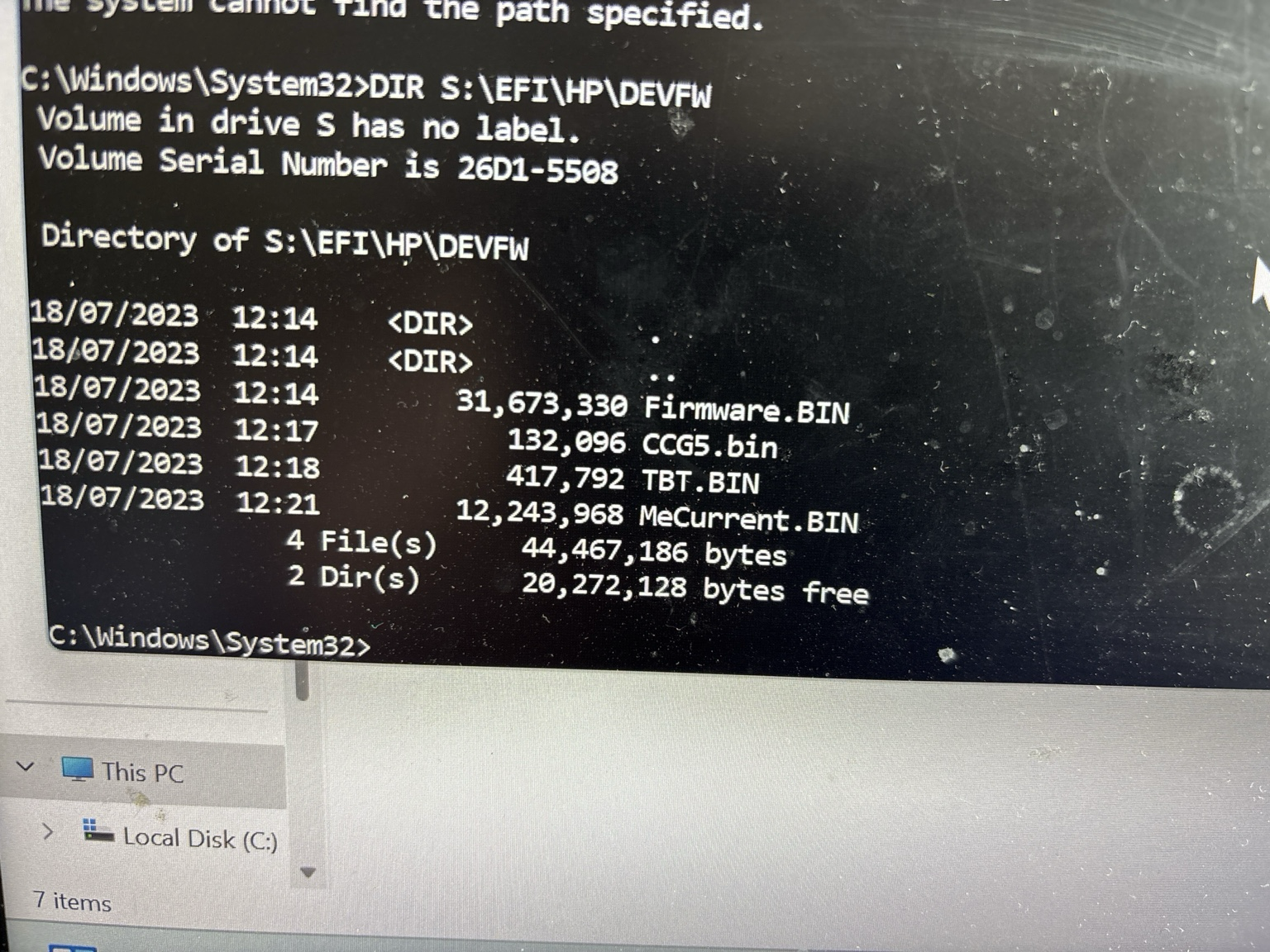
- At this point we discovered the EFI partition only had about 7.5MB free. This turned out to be due to there being 57MB of HP firmware staging files.
- We then deleted the staging files to make more space and tried again to re-install Windows. This failed but fortunately left logs (
setuperr.log/setupact.log). This gave us the final clue we needed:
	BFSVC: Error creating ...\EFI\Microsoft\Boot\da-DK\ path
	Last Error = 0xb7
- Inspection showed da-DK, de-DK and el-GR existed as 1024-byte files instead of directories in the folder \EFI\Microsoft\Boot. The install process needed to create folders with these names but since files with those names already existed it failed and raised an error.
- After removing the legacy software in the folder S:\EFI\HP\DEVFW, and removing the corrupt files manually, we were then able to re-install windows from the install ISO (retaining all of the user data).
- We were then able to restore the Secure Boot Mode and launch windows properly.
This sounds like a relatively simple process but before we got to this point we ended up going down several rabbit holes, many suggested by ChatGPT. It was good to be able to test and eliminate these one by one but took ages. After the above process the laptop seems to be now working fine and no further problems have been encountered.
A Repeat on Another Laptop
A few weeks after this happened we found a similar thing with my granddaughter's sister's laptop, which is the same type. The error message was the same and with the knowledge from above the fix was much simpler. This time the approach followed was:
- Mount the EFI partition (as S:) and inspect the S:\EFI\Microsoft\Boot folder to look for corrupt files. Sure enough there were three: 'da-DK, de-DE, el-GR'. We deleted these.
- Removed the folder S:\EFI\HP\DEVFW, which contained files from 2023 (probably an earlier attempt to update BIOS). This was using 44MB of the 64 available in the partition
- Update the Bios (see the process below)
- At this point we attempted to let Windows try to carry out updates, however, this consistently failed with a download error: 0x80246019. We were unable to cure this and so resorted to again installing the latest version of windows from an ISO (see procedure below). This worked successfully.
- After successful install we again mounted the EFI partition and checked that the three files that were corrupting the earlier Boot folder were now directories:
	dir S:\EFI\Microsoft\Boot\da-DK
	dir S:\EFI\Microsoft\Boot\de-DE
	dir S:\EFI\Microsoft\Boot\el-GR
- After confirming these were indeed now directories we then booted back into the startup menu and did the following:
- Sure Start Secure Boot Keys Protection → leave Disabled for now.
- Reset Secure Boot keys to factory defaults.
- Legacy Support → Disabled.
- Secure Boot → Enabled.
- Save and restart.
Windows then booted up quickly and easily.
Supporting Information
A semi-helpful HP support document we found was: https://support.hp.com/lv-en/document/ish_9642671-9641393-16?jumpid=in_r11839_lv-en/PCSecureBootErr
How to update the Bios
- On the affected laptop, go to the HP EliteBook 840 G6 drivers page.
- Select Windows 11 and the appropriate version.
- Expand BIOS.
- Download the latest HP BIOS Update / System BIOS SoftPaq.
- Leave the laptop connected to mains power.
- Run the downloaded
.exeas Administrator. - Choose the option to Update this computer rather than create a recovery USB.
- Let it copy/stage the BIOS files and restart when requested.
- During restart, HP’s firmware updater should take over. Do not interrupt it, even if it restarts more than once.
- Once Windows is back, verify the BIOS version with:
wmic bios get smbiosbiosversion
How to Install the Latest Version of Windows
- Download the ISO from Microsoft’s official Windows 11 site (select “Download Windows 11 Disk Image (ISO) for x64 devices”. Microsoft currently identifies the release there as Windows 11 25H2).
- Select the Windows 11 multi-edition ISO. For language, on the first laptop we used: 'English International'
- Download the ISO directly onto the laptop. It will be several GB.
- Mount it — don’t make a bootable USB
- Once downloaded, in File Explorer: Right-click ISO → Mount. Windows will create a virtual DVD drive, probably D: or E:. Open it and run: setup.exe
- During Setup:. Proceed through the installer. When you reach Choose what to keep, make certain it says:
Keep personal files and appsThis preserves the existing applications, data and Windows settings
Some useful things that I learnt from ChatGPT about working with windows are included below:
System File Checks
Run from Administrator Command Prompt:
sfc /scannow
Repair Windows component store
DISM /Online /Cleanup-Image /RestoreHealth
Recovery Environment
Check Windows Recovery status:
reagentc /info
Re-enable Recovery Environment:
reagentc /enable
Boot Configuration
Display Windows Boot Manager:
bcdedit /enum {bootmgr}
Display current boot loader:
bcdedit /enum {current}
Display firmware entries:
bcdedit /enum firmware
EFI Partition Access
Mount EFI partition:
mountvol S: /S
Remove mounted drive letter:
mountvol S: /D
Disk Layout
Enter DiskPart:
diskpart
List disks:
list disk
Select disk: select disk 0
List partitions:
list partition
List volumes:
list volume
Check Secure Boot Databases
Enter powershell:
powershell
Check Platform Key:
Get-SecureBootUEFI -Name PK
Check Key Exchange Key database:
Get-SecureBootUEFI -Name KEK
Check signature database:
Get-SecureBootUEFI -Name db
Check revocation database:
Get-SecureBootUEFI -Name dbx
BIOS Version
Get the bios version:
wmic bios get smbiosbiosversion
EFI Partition Analysis
Total EFI usage:
dir S:\ /s
EFI Microsoft Boot files:
dir S:\EFI\Microsoft\Boot
Recursive listing:
dir S:\EFI\Microsoft\Boot /s
Important Locations
Windows Setup Logs
Most useful discovery location.
Setup Error Log
C:\$WINDOWS.~BT\Sources\Panther\setuperr.log
Contains the actual failures.
Useful command:
notepad C:\$WINDOWS.~BT\Sources\Panther\setuperr.log
Setup Activity Log
C:\$WINDOWS.~BT\Sources\Panther\setupact.log
This usually explains why an error occurred.
Open:
notepad C:\$WINDOWS.~BT\Sources\Panther\setupact.log
Show last lines:
powershell "Get-Content C:\$WINDOWS.~BT\Sources\Panther\setupact.log -Tail 200"
EFI Partition
Mount using:
mountvol S: /S
Contents can then be viewed using the usual commands such as:
dir S:\ /s
HP Staging Files
These can be seen if they exist using:
dir S:\EFI\HP\DEVFW